For sellers
From Product Snapshot to a Ready-to-Activate Listing — With an AI Agent
A listing photo that sells needs even lighting, a clean background, a square crop and a small file size — most photos straight from a phone have none of these yet. Connect your AI assistant to Resollo, pick your photos, and Resollo's own AI reads them to draft the whole listing — title, description and suggested price included — just one click from going live. Add a couple of free photo connectors, and your agent cleans up the photos first, too.
What actually happens to your photo
The same four fixes, applied the same way to every photo, with no sliders to nudge and no guesswork.
- 1
Colour and lighting corrected
Most photos taken indoors come out dark or with a yellow cast from the room lights. The white balance and brightness are corrected so the item's real colour is what buyers see.
- 2
Background removed
Your item is lifted away from whatever was behind it, the table, the carpet, the wall, and placed on a clean backdrop. No more clutter competing with the product for attention.
- 3
Centred on a square
The item is placed in the middle of a square frame with even space on every side. Resollo listings are shown as 1:1 squares at 1000x1000 pixels; photos in any other shape get cropped or shrunk when you upload them, so this is the shape that actually survives.
- 4
Saved at the right size
The finished photo is exported at 1000x1000 pixels in a lightweight web format, so it loads fast on every device and matches every other photo in your listing.
See it on a real photo
One phone snapshot run through the full clean-up. The version on a coloured backdrop is shown here because it reads better as an example; a plain backdrop works exactly the same way.
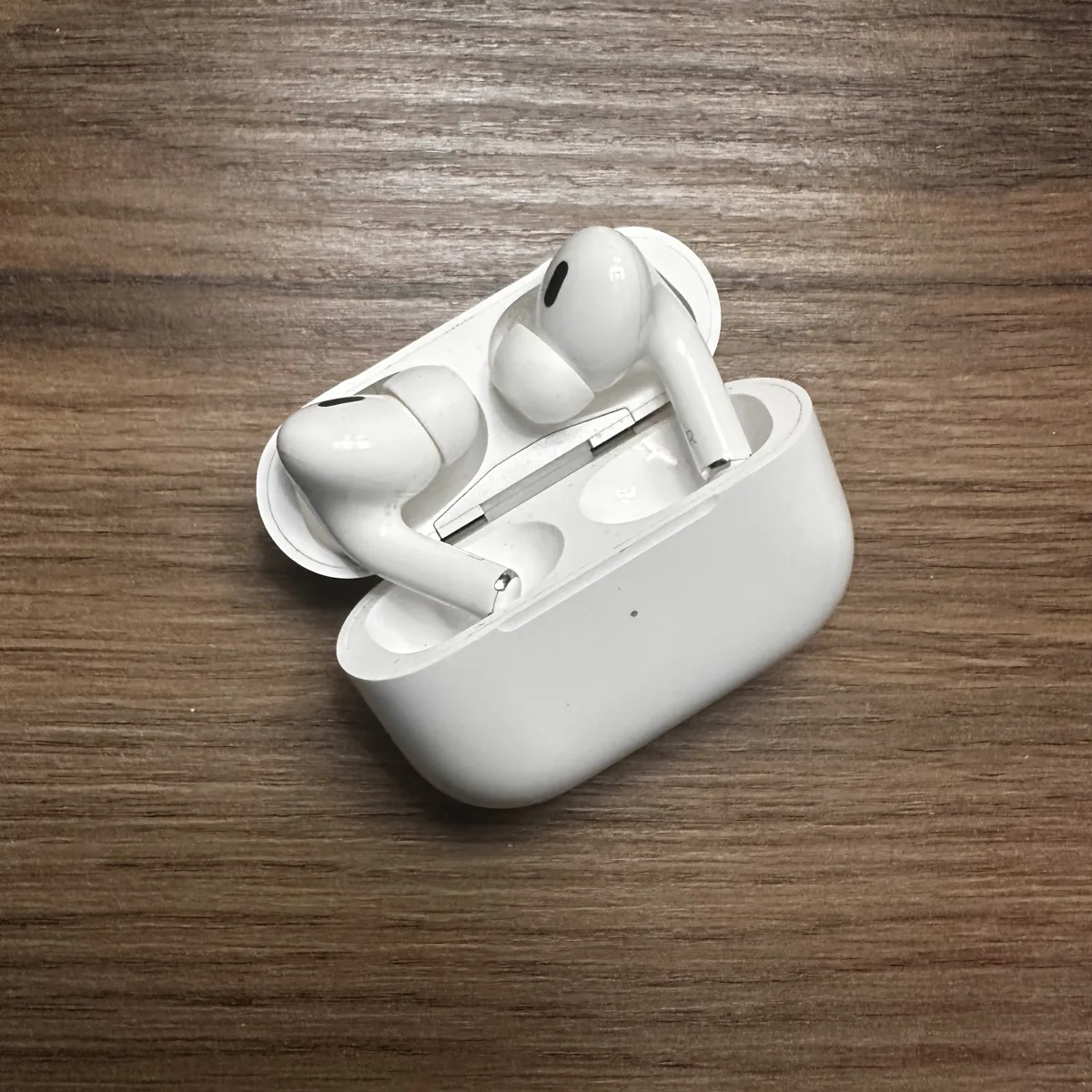
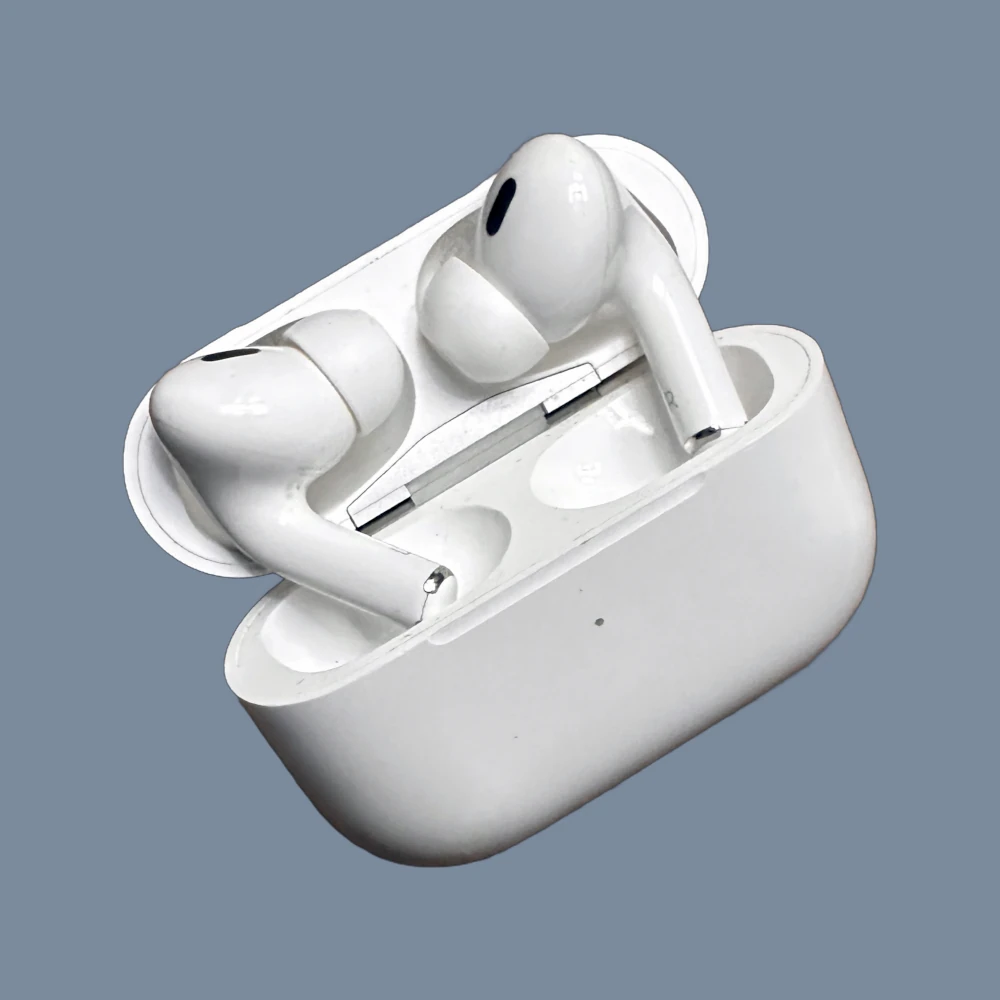
Resollo listing photos: 1:1 ratio, 1000x1000 pixels, web-optimised format.
How to actually get this: connect your AI assistant to Resollo
All you need is an AI app and the Resollo connector. Describe what you want in plain language: Resollo's photo picker opens, you pick the photos, and Resollo's AI creates a ready-to-activate listing — title, description and price suggestion included.
- 1
Get an AI app
Use an MCP-compatible AI app — Claude, ChatGPT, Cursor, Windsurf and others all work. This guide's setup was tested with Claude.
- 2
Connect Resollo
Add https://www.resollo.com/api/mcp as a connector. Resollo asks you to sign in (or sign up) the first time your assistant needs your account. If your app can't sign in to connectors by itself, generate a key on your Profile page under "AI Agent Access" and connect with that instead — the exact command is in our setup guide.
- 3
Just say what you want to sell
Tell your assistant something like "I'd like to sell this item". Resollo's photo picker opens right in the chat (or as a link, if your app can't show it): pick your photos there — your browser resizes them and strips location data. Resollo's AI drafts the whole listing — title, description, price — so you just review it and switch it on.
Optional: let your agent clean up the photos first
Want the four fixes above done for you? Add a free, open toolchain to the same agent. Listing works without it — it only makes your photos look better.
- 1
Get your photos onto your computer
Transfer the photos from your phone to the computer your agent runs on — AirDrop, a cable, cloud sync, whatever you normally use. Your agent can only work with files it can actually open.
- 2
Add the free photo connectors
GIMP and Inkscape are free, open-source apps. Connect them to your agent together with our background-removal helper — full setup instructions are on our GitHub. The same place also has free Resollo agent skills, so your agent already knows the right steps.
- 3
Ask for the clean-up
Tell your agent something like "clean up these photos and save them". It edits the photos on your computer and saves the finished files.
- 4
Pick the cleaned photos
Then ask it to list the item, and in Resollo's photo picker choose the cleaned files instead of the originals.
The photo clean-up is a power-user setup: it involves installing desktop apps and being comfortable with a terminal. Listing through your assistant works without it. Each draft listing draws 2 credits from the same AI credits as the site's own autofill and price-suggestion tools, so you'll need some available.
When this is exactly what you needed
If you have searched for any of these, this is the shortcut:
- How to take professional product photos with a phone
- How to remove the background from a product photo
- What size should marketplace listing photos be
- How to make second-hand items look good in photos
- How to fix dark or yellow indoor photos
- How to connect an AI agent to your marketplace listings
Ready to try it?
Connect your AI assistant once, and you can list items from a conversation from then on — with photo clean-up too, if you add the free connectors. Prefer to do it yourself? You can always upload and edit your photos manually instead.